

Compute
管理实例
对运行中的租用做的一切操作都发生在 My Instance 页面上,标题为 Instances:连接、发布端口、延长时长,或归档文件。显示 “No results found.” 说明什么都没在跑 —— 先从部署 GPU 实例开始。
- 一个已完成开通的租用,卡片显示 Active。
- Manage compute 权限(权限表)。
- 一个 SSH 客户端。Windows 10 和 11 自带;如果找不到
ssh,安装 “OpenSSH Client” 可选功能。
你的实例卡片
Section titled “你的实例卡片”每个租用一张卡片,上面有 Connect、Web Access、Renew 和 Backup 这几个操作。
- 节点信息 —— 供应商与所在位置、GPU 名称及其 VRAM、IP Address、CPU 型号、Cores、Speed、以 Mbps 计的 Download 和 Upload,以及 Disk Space。
- Status —— Active 或 Inactive,这只是容器的开/关状态,不是生命周期状态;新租用在开通完成后会翻成 Active。
- 利用率条 —— CPU Utilization、Disk Utilization,以及按 GPU 序号显示的 GPU Utilization。在 agent 上报指标之前它们显示 No data,一般在启动后几分钟。
- 底部 —— Running grafilab/jupyterlab:2026-06-09 和 Expire at 9 Sept 2026, 04:32 am MYT,也就是租用结束的时刻。
通过 SSH 连接
Section titled “通过 SSH 连接”-
In the console open My Instance (
https://app.grafilab.ai/orders) and find the card for your instance. Wait until its status reads Active. -
Click Connect. The Connect with SSH dialog shows an SSH Connect command and a Password.
-
Copy the command into a terminal, press Enter, and paste the password when prompted. You land in a root shell inside the container.
命令有两种形式,取决于节点是通过 Grafilab 代理访问还是直接用它自己的地址:
ssh <your-slug>@<ssh-proxy-host> -p <port># orssh <username>@<ip-address> -p <port>复制对话框里显示的那一条,不要自己拼;对话框里还有 Reset Password 和 Close。输入密码时屏幕上不会有任何显示 —— 这是正常的。你会以 root 身份进入,GPU 已挂载,nvidia-smi 立刻就能列出显卡。
如果密码失效了,在 Connect 对话框里点 Reset Password。确认框会问 “Are you sure you want to proceed with password reset?” 并提示 “It might take a little while for the changes to be reflected. Thank you for your patience.” 选 Yes;成功后你会看到 “Password reset was successful.” 重新打开 Connect 查看新密码。
复制文件进出
Section titled “复制文件进出”用和 SSH 命令相同的端口:
# push a dataset to the instancescp -P <port> dataset.zip <your-slug>@<ssh-proxy-host>:/root/
# pull results back, resuming if interruptedrsync -avP -e "ssh -p <port>" <your-slug>@<ssh-proxy-host>:/root/outputs/ ./outputs/
注意 scp 用的是大写 -P,而 rsync 传输字符串里用的是小写 -p。
SSH 连不上时
Section titled “SSH 连不上时”- 刚启动就
Connection refused—— 容器还没起来。等卡片显示 Active 后再试。 Permission denied—— 密码被重新生成过。在 Connect 对话框里点 Reset Password,然后重新打开对话框查看新密码。- 命令能通过 SSH 执行,但找不到 CUDA 或 conda —— 平台层会把镜像自身的环境变量导入登录 shell,但只对
bash生效。如果镜像的交互式 shell 不是 bash,就自己 source 环境,或者用完整路径调用可执行文件。
访问 web 服务
Section titled “访问 web 服务”带 web UI 的模板已经在 80 端口上通过 https://<your-slug>.instance.grafilab.ai 响应。你自己启动的其他服务用 Web Access。
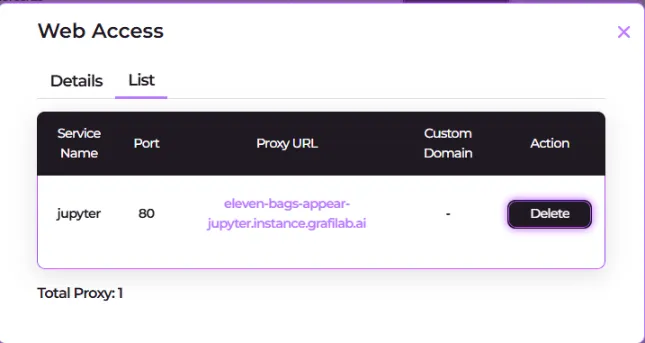
对话框有 Details 和 List 两个标签页:“Expose a running service inside your instance to the internet. Each port mapping creates a public proxy URL (e.g. <slug>-<service_name>.instance.grafilab.ai) that routes traffic to the specified port in your container.”
在 Details 里:
- Service Name —— “A unique label for this port mapping. Used to generate the proxy URL.” 只能用字母、数字和连字符;
ssh是保留字。占位符里的示例:jupyter、api、webui。 - Port —— “The port your service is listening on inside the container (1–65535).” 这是你的进程实际绑定的端口,而且必须绑到
0.0.0.0而不是127.0.0.1,否则代理访问不到。 - Custom Domain (Optional) —— “Point your own domain to this service. Set a CNAME record in your DNS pointing to the proxy URL shown in the list.”
映射结果是 https://<your-slug>-<service>.instance.grafilab.ai。List 标签页列出所有映射 —— Service Name、Port、Proxy URL、Custom Domain,以及一个 Action 列,其中的 Delete 可以删掉某一行。底部的 Total Proxy: 统计这个实例上的映射数量。
-
在 Web Access → Details 里先保存映射,填好 Service Name、Port 和你在 Custom Domain (Optional) 里的主机名。
-
打开 List 标签页,复制那一行的 Proxy URL —— 它就是 CNAME 的目标。
-
在你的 DNS 服务商那里,添加一条从你的主机名指向该代理 URL 的 CNAME 记录。记录生效后你的域名就能访问了。
Anyone with the URL can reach your web UI
The Grafilab proxy does not add a login in front of your instance. Your random three-word slug (https://<your-slug>.instance.grafilab.ai) is the only barrier, and the shipped web templates have no application login of their own (Open WebUI is the exception). Treat the URL like a password: don’t paste it in public places, and if you need a lock, add one inside the app over SSH.
实例运行到 Expire at 为止,不会再多一秒。在那之前点 Renew。
-
在实例卡片上点 Renew。对话框打开,显示 “You may renew your rent & run before the expiry date.”
-
选择一个时长。对话框会显示这个节点的 Price per hour,让你看清延长要花多少钱。
-
选一种 Payment 方式 —— 银行卡选项显示为 Visa or Mastercard,用额度支付则显示你的 Balance:。
-
点 Confirm。你会看到 “Rental renewal was successful. The system is updating your expiry date and it will be visible shortly.”
新的 Expire at 要等支付记录结算后才会出现,这并不总是立刻完成 —— 过一分钟刷新页面,不要重复续期。在租用与账单记录里跟踪这笔扣费。
到期时会发生什么
Section titled “到期时会发生什么”到了 Expire at,容器会被删除,节点回到市场。没有按钮可以提前终止租用,未用完的小时数也不退款 —— 要延长就续期,时间用完前先归档你的工作。
Backup 把容器里的文件夹归档到 Grafilab 存储,并给你一个比租用活得更久的 .tar 下载。在 Expire at 之前尽早开始。
Nothing persists past the rental
Instances have no persistent volume. Anything you write at runtime — downloaded models, installed packages, notebooks, outputs — lives in the container for the lifetime of the rental and is gone when it expires. Before Expire at, back up the folders you care about to Grafilab storage and download the archive.