

Compute
データをバックアップする
稼働中のインスタンスから必要なフォルダーを Grafilab ストレージにアーカイブし、レンタルより長く残る .tar ファイルとしてダウンロードします。
- My Instance でカードが Active になっているインスタンス。
- Manage compute 権限(権限の一覧)。
- アーカイブの作成とアップロードが終わるだけの時間が Expire at までに残っていること。
Backup がすること
Section titled “Backup がすること”インスタンスカードの Backup を押すと、New Backup と Backups の 2 つのタブを持つダイアログが開きます。ノード上で選んだパスのアーカイブを作成し、Grafilab ストレージにアップロードして、ダウンロードリンクを渡します。
これはダウンロード専用です。アーカイブをマシンに戻す機能はありません。ファイルをインスタンスに戻すには、アーカイブをダウンロードして scp で再度アップロードします — ファイルを送受信する を参照してください。
バックアップを作成する
Section titled “バックアップを作成する”-
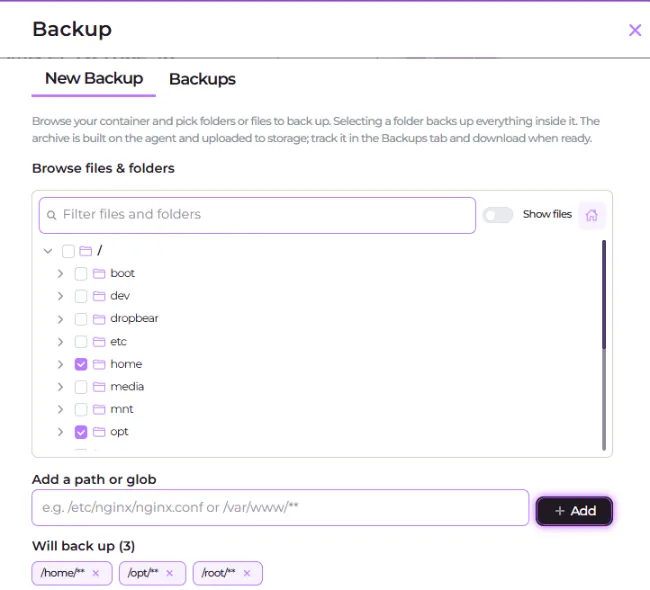
インスタンスカードで Backup をクリックします。ダイアログは New Backup で開きます: “Browse your container and pick folders or files to back up… The archive is built on the agent and uploaded to storage; track it in the Backups tab and download when ready.”
-
Browse files & folders で、対象のフォルダーとファイルにチェックを入れます。ツリーはコンテナのホームディレクトリ —
/root、名前付きユーザーのイメージでは/home/<user>— から始まります。フォルダーにチェックを入れると、その中身がすべて含まれます。 -
ツリーに出てこないものは、Add a path or glob に絶対パスまたは glob を入力し — プレースホルダーは
e.g. /etc/nginx/nginx.conf or /var/www/**— Add をクリックします。相対パスは受け付けられません。 -
Will back up (n) のピルを確認します。ツリーからの選択も glob も、すべてここに集まります。“Nothing selected yet — tick items above or add a path.” と表示されている間は、ボタンを押しても何も起きません。
-
必要に応じて Exclude patterns (Optional) を入力します: “One per line. Absolute globs (e.g.
/var/www/cache/**) or bare filename patterns (e.g.*.log).”/root/.cache/***.log*.ckpt -
Create Backup をクリックします。“Backup task created. Track its progress in the Backups tab.” と表示されます。
進行状況の確認とダウンロード
Section titled “進行状況の確認とダウンロード”-
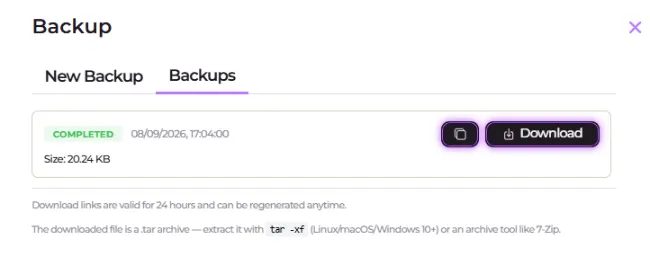
Backups タブを開きます。タスクは新しい順に並び、いずれかが実行中の間はリストが自動で更新されます。
-
ステータス列を見ます。Starting…、続いて Backing up…、そしてバイトカウンター付きの Uploading(
x / y (n%))と進み、最後に緑の Completed と Size、または赤の Failed とエラーで終わります。コンソールが認識できない状態は Pending と表示されます。 -
Completed の行で Download をクリックしてファイルを取得するか、Copy download link でリンクをコピーして他の場所に貼り付けます。クリックのたびに新しいリンクが発行されます: “Download links are valid for 24 hours and can be regenerated anytime.”
-
ローカルでアーカイブを展開します。“The downloaded file is a .tar archive — extract it with
tar -xf(Linux/macOS/Windows 10+) or an archive tool like 7-Zip.”ターミナルウィンドウ tar -xf backup-<id>.tar -C ./backup
- 1 インスタンスにつき同時に 1 件。 2 つ目を開始すると “A backup is already running for this instance. You can start a new one once it finishes.” と表示されます。
- ジョブはコンテナとともに消えます。 Expire at よりかなり前に始めてください。大きなアップロードは一瞬では終わらず、レンタルが期限切れになると未完了のアーカイブも一緒に失われます。
- ダウンロードのみ。 ファイルを戻すのは手動の
scpアップロードです。 - バックアップには、到達可能でエージェント管理下のノードが必要です。失敗の内容はダイアログが個別に伝えます — 契約が無効、このマシンではブラウズが未対応、マシンに接続できない、include パスがない、include パスが絶対パスでない、exclude パターンが不正、すでにバックアップが実行中、タスクが完了またはアップロードされていない、などです。
Nothing persists past the rental
Instances have no persistent volume. Anything you write at runtime — downloaded models, installed packages, notebooks, outputs — lives in the container for the lifetime of the rental and is gone when it expires. Before Expire at, back up the folders you care about to Grafilab storage and download the archive.